name: erispulse-ecosystem description: "适用于:了解生态组件(Dashboard/Cron/AI 模块等)与各平台适配器的接入差异。覆盖场景:The ErisPulse framework itself only provides core capabilities (event system, module system, configuration, routing, logging, etc.), and does not include "heavyweight" features such as GUI, image rendering, and visualization. These capabilities are provided by community-maintained third-party modules, which can be installed on demand.。Read this when you want to manage your bot through a web-based visual interface (start/stop modules, edit configurations, view logs, monitor event streams), or when you want to register a Dashboard management page for your own module. Skip it if you don't need these.。Read this when your module needs to trigger logic at a scheduled or delayed time (such as reminders, periodic monitoring, or scheduling with Cron expressions), and you want the tasks to persist after a framework restart. Skip this if you don't need it.。Read this when you want to add AI agent capabilities (tool loops, streaming chat, MCP, long-term memory)..."
ErisPulse 生态与多平台
This skill is auto-built from the ErisPulse documentation. Repository: https://github.com/ErisPulse/ErisPulse Source paths are annotated per section; see docs/ in the repository for the latest content.
内容大纲
AI 按需读取:只读需要的章节即可,不必全文加载。
- 生态总览: 48-67 行
- Recommended Modules: 69-109 行
- Official Client (Standalone Application): 111-121 行
- Want to list your own module here?: 123-131 行
- Dashboard: 133-160 行
- How It Works: 162-173 行
- Registration API: 175-213 行
- Two Injection Modes: 215-248 行
- Sidebar Groups: 250-276 行
- Common CSS Class Names: 278-313 行
- Authentication and API Calls: 315-337 行
- Complete Module Example: 339-449 行
- Unregistering a View: 451-463 行
- Notes: 465-475 行
- 定时任务: 477-497 行
- Feature Overview: 499-506 行
- Quick Start: 508-526 行
- API Overview: 528-581 行
- Behavior on Module Unload: 583-588 行
- AI 对话模块: 590-608 行
- Core Capabilities: 610-629 行
- Module Extensions: 631-701 行
- Event Subscription: 703-715 行
- Invoked as a Service: 717-723 行
- Interface: 725-733 行
- 平台指南索引: 735-751 行
- Platform-Specific Features: 753-775 行
- General Interfaces: 777-957 行
- Standard Formats: 959-1015 行
- References: 1017-1027 行
- Contributing: 1029-1038 行
生态总览
来源:
docs/en/ecosystem/README.md(https://github.com/ErisPulse/ErisPulse/blob/main/docs/en/ecosystem/README.md)
Ecosystem Modules
The ErisPulse framework itself only provides core capabilities (event system, module system, configuration, routing, logging, etc.), and does not include "heavyweight" features such as GUI, image rendering, and visualization. These capabilities are provided by community-maintained third-party modules, which can be installed on demand.
Important
The documentation in this directory is divided into two categories, each with a different installation method:
Modules (such as Dashboard / Takumi) are installed using
epsdk install:epsdk install <module-name>Standalone programs (such as the ErisPulse-App client) can be downloaded and installed directly from the corresponding GitHub Releases, without the need for
epsdk.
Recommended Modules
ErisPulse-Dashboard: An Admin Panel in Your Browser
Your bot runs on a server, and you still need to log into a terminal to start/stop modules, tweak configurations, or check logs? Dashboard brings all of this into the browser: module start/stop, configuration editing, log viewing, and event monitoring; other modules can also register custom windows in the sidebar, keeping all management pages in one place.
epsdk install Dashboard
Docs: Dashboard Usage and Window Registration | Project homepage: PyPI
ErisPulse-Cron: Scheduled Tasks
Need to send daily check-in reminders on schedule, run periodic tasks with Cron expressions, or poll data every few minutes? Cron offers three task types—one-time / interval / Cron expression—with callback parameters and SQLite persistence (tasks survive restarts).
epsdk install Cron
Docs: Cron Scheduled Tasks | Project homepage: GitHub
ErisPulse-QvQChat: General-Purpose Agent
Want an AI assistant in your group that actually gets things done, instead of one that only replies with keyword matching? QvQChat is a general-purpose agent: its tool loop covers message sending/receiving / code execution / computer operations / image generation / voice / MCP / sub-agents, supports streaming conversations and serialized tool replay, and comes with a built-in Dashboard window.
epsdk install ErisPulse-QvQChat
Docs: QvQChat Agent | Project homepage: GitHub
ErisPulse-Takumi: Image Rendering
For scenarios that require "sending images"—like leaderboards, battle reports, or schedule cards—just write a template, render it into an image, and send it to your group: it supports HTML / node trees / Jinja / SVG / animation (based on takumi-py), comes with built-in Chinese and English fonts, and works right out of the box.
epsdk install Takumi
Docs: Takumi Image Rendering | Project homepage: GitHub (Author: @ccd2s)
Official Client (Standalone Application)
ErisPulse-App: Run Bots Directly on Your Phone
No always-on server, but still want to create instances, install modules, and view event streams anytime? ErisPulse-App is the official cross-platform client (Android / Windows / Linux / macOS): a native interface for creating / running / managing multiple bot instances, with a built-in module marketplace and event builder. Runs directly on your phone, and stays resident in the desktop tray on desktop.
Installation packages for all platforms can be downloaded from GitHub Releases; no need for epsdk.
Documentation: ErisPulse-App Installation and Usage
Want to list your own module here?
We welcome recommendations of high-quality, widely reusable ErisPulse ecosystem modules. Requirements:
- Published on PyPI, with a package name starting with
ErisPulse- - Provides a basic README and usage examples
- Actively maintained, with responses to Issues
Module authors who meet the above criteria can add a <Module-Name>.md document in this directory via a PR, and add the corresponding section to the recommendation list above.
Dashboard
来源:
docs/en/ecosystem/dashboard.md(https://github.com/ErisPulse/ErisPulse/blob/main/docs/en/ecosystem/dashboard.md)
ErisPulse-Dashboard
Tip
When to read this: Read this when you want to manage your bot through a web-based visual interface (start/stop modules, edit configurations, view logs, monitor event streams), or when you want to register a Dashboard management page for your own module. Skip it if you don't need these.
ErisPulse-Dashboard is a Web management panel module maintained directly by ErisDev, providing ErisPulse with a visual runtime management interface: module start/stop, configuration editing, log viewing, event stream monitoring, and more.
Important
Dashboard is not a built-in feature of the ErisPulse framework and requires separate installation:
epsdk install Dashboard
Dashboard also supports other ErisPulse modules registering custom management pages to the sidebar. Once registered, users can switch directly to the module's dedicated view page within the Dashboard, without needing to develop a standalone frontend interface.
Note
View registration is an optional feature.
- If the Dashboard module is not installed or not loaded, calling
sdk.Dashboard.register_view()will raise an exception - Be sure to wrap the registration code in
try/exceptto ensure that other functionality of the module itself is not affected - It is recommended to check whether Dashboard is available before registering:
hasattr(sdk, 'Dashboard') and sdk.Dashboard
How It Works
Module on_load()
  → Calls sdk.Dashboard.register_view(...)
  → Dashboard backend stores view information
  → WebSocket notifies the frontend
  → Frontend dynamically creates sidebar navigation item + page container
  → User clicks to view the module view
Registration API
sdk.Dashboard.register_view(
    id="MyModule",                    # Required, unique identifier
    title="My Module",                # Chinese name
    title_en="My Module",             # English name
    icon_svg='<svg>...</svg>',        # Sidebar icon SVG
    html_content='<div>...</div>',     # Page HTML content
    js_content='function xxx() {}',    # Page JavaScript logic
    css_content='.my-style {}',        # Optional custom CSS
    iframe_url='',                     # iframe mode URL (choose either this or html_content)
    loader="loadMyModuleView",         # JS function name called when switching to this page
    group="group_extensions",          # Sidebar group
    group_title="",                    # Custom group name in Chinese
    group_title_en="",                 # Custom group name in English
)
Parameter Descriptions
| Parameter | Type | Required | Description |
|---|---|---|---|
id |
str |
Yes | Unique identifier of the view; module name recommended |
title |
str |
No | Chinese display name, defaults to id |
title_en |
str |
No | English display name, defaults to title |
icon_svg |
str |
No | Complete SVG string for the sidebar icon |
html_content |
str |
No* | Page HTML content in injection mode |
js_content |
str |
No | Page JavaScript code |
css_content |
str |
No | Page custom CSS styles |
iframe_url |
str |
No* | URL in iframe mode; html_content is ignored when set |
loader |
str |
No | JS function name automatically called when the page is activated |
group |
str |
No | Sidebar group identifier, defaults to group_extensions |
group_title |
str |
No | Chinese title of the custom group |
group_title_en |
str |
No | English title of the custom group |
*At least one of
html_contentandiframe_urlmust be provided; otherwise the page will be blank.
Two Injection Modes
Mode 1: HTML/JS Injection (Recommended)
Provide HTML, JS, and CSS strings directly, and Dashboard will inject the content into the page. This mode is fully consistent with the Dashboard's styling; it is recommended to use the CSS class names provided by Dashboard.
sdk.Dashboard.register_view(
    id="HelloPage",
    title="Hello Page", title_en="Hello",
    icon_svg='<svg viewBox="0 0 24 24" fill="none" stroke="currentColor" stroke-width="2"><circle cx="12" cy="12" r="10"/></svg>',
    html_content='<h1 class="page-title">Hello World</h1><div class="card"><div class="card-body">This is a sample page</div></div>',
    group="group_tools",
)
For a complete weather module example (including API routes, JS interactions, etc.), see Complete Module Example below.
Mode 2: iframe Embedding
The module provides its own HTML page URL (routes must be registered by the module itself), and Dashboard embeds it via an iframe. Suitable for scenarios that require a completely independent UI or complex interactions.
sdk.Dashboard.register_view(
    id="MyVisualizer",
    title="Data Visualization", title_en="Data Visualizer",
    iframe_url="/MyVisualizer/view",
    group="group_tools",
)
In iframe mode, a
tokenparameter is automatically appended to the URL for authentication.
Sidebar Groups
Modules can specify the sidebar group in which the view is placed. Dashboard includes the following built-in groups:
| Group Identifier | Chinese Name | Position |
|---|---|---|
group_overview |
Overview | Group 1 |
group_events |
Events | Group 2 |
group_extensions |
Extensions | Group 3 (Default) |
group_system |
System | Group 4 |
group_tools |
Tools | Group 5 |
Specifying a built-in group name will append the module view to the end of that group:
group="group_tools" # Appended to the "Tools" group
You can also use a custom group name (not starting with group_), and Dashboard will automatically create a new group:
group="my_group",
group_title="My Group",
group_title_en="My Group",
Common CSS Class Names
When the module view uses HTML injection mode, you can directly use Dashboard's existing CSS class names to maintain visual consistency:
| Class Name | Purpose |
|---|---|
page-title |
Page title, e.g., <h1 class="page-title">Title</h1> |
card |
Card container |
card-header |
Card header bar |
card-body |
Card content area |
grid-2 |
Two-column grid layout |
grid-3 |
Three-column grid layout |
btn |
Basic button |
btn-primary |
Primary button (blue) |
btn-secondary |
Secondary button |
btn-icon |
Icon button |
btn-danger |
Danger action button |
Dashboard uses CSS variables to control theme colors, which you can reference directly in your module view:
| CSS Variable | Purpose |
|---|---|
var(--bg-p) |
Primary background color |
var(--bg-s) |
Secondary background color |
var(--bg-t) |
Tertiary background color (cards, etc.) |
var(--tx-p) |
Primary text color |
var(--tx-s) |
Secondary text color |
var(--tx-t) |
Auxiliary text color |
var(--bd) |
Border color |
var(--accent) |
Accent color |
var(--ok-c) |
Success color |
var(--er-c) |
Error color |
These variables switch automatically according to Dashboard's light/dark theme, so modules do not require additional handling.
Authentication and API Calls
When calling your module's own API from the JS in a module view, you need to carry the Dashboard Token for authentication:
var token = localStorage.getItem('__ep_tk__');
var resp = await fetch('/YourModule/api/data', {
    headers: { 'Authorization': 'Bearer ' + token }
});
var data = await resp.json();
The module's API endpoint can decide on its own whether to verify the Token. If verification is needed, it can be extracted from the request headers:
async def _api_data(self, request):
    token = request.headers.get("Authorization", "").replace("Bearer ", "")
    if not token:
        return {"error": "Unauthorized"}, 401
    return {"data": "hello"}
Complete Module Example
Below is a complete weather module example demonstrating how to register a view, provide API data, and clean up resources on unload:
from ErisPulse import sdk
from ErisPulse.Core.Bases import BaseModule
from ErisPulse.Core.Event import command


class Main(BaseModule):
    def __init__(self):
        self.sdk = sdk
        self.logger = sdk.logger.get_child("Weather")
        self.config = self._load_config()

    @staticmethod
    def get_load_strategy():
        from ErisPulse.loaders import ModuleLoadStrategy
        return ModuleLoadStrategy(lazy_load=False, priority=50)

    async def on_load(self, event):
        self._register_routes()
        self._register_dashboard_view()
        self.logger.info("Weather module loaded")

    async def on_unload(self, event):
        self._unregister_routes()
        if hasattr(self.sdk, 'Dashboard') and self.sdk.Dashboard:
            self.sdk.Dashboard.unregister_view("Weather")
        self.logger.info("Weather module unloaded")

    def _load_config(self):
        config = self.sdk.config.getConfig("Weather")
        if not config:
            default = {"city": "Beijing", "api_key": ""}
            self.sdk.config.setConfig("Weather", default)
            return default
        return config

    def _register_routes(self):
        r = self.sdk.router
        r.register_http_route("Weather", "/api/current",
                              handler=self._api_current, methods=["GET"])

    def _unregister_routes(self):
        r = self.sdk.router
        try:
            r.unregister_http_route("Weather", "/api/current")
        except Exception:
            pass

    async def _api_current(self, request):
        return {
            "city": self.config.get("city", "Beijing"),
            "temp": 25,
            "humidity": 60,
        }

    def _register_dashboard_view(self):
        try:
            dashboard = self.sdk.Dashboard
            dashboard.register_view(
                id="Weather",
                title="Weather", title_en="Weather",
                icon_svg='<svg viewBox="0 0 24 24" fill="none" stroke="currentColor" stroke-width="2"><circle cx="12" cy="12" r="5"/><line x1="12" y1="1" x2="12" y2="3"/><line x1="12" y1="21" x2="12" y2="23"/><line x1="4.22" y1="4.22" x2="5.64" y2="5.64"/><line x1="18.36" y1="18.36" x2="19.78" y2="19.78"/><line x1="1" y1="12" x2="3" y2="12"/><line x1="21" y1="12" x2="23" y2="12"/><line x1="4.22" y1="19.78" x2="5.64" y2="18.36"/><line x1="18.36" y1="5.64" x2="19.78" y2="4.22"/></svg>',
                html_content='''
                    <h1 class="page-title">Weather Query</h1>
                    <p style="color:var(--tx-s);margin-bottom:16px">View current weather information</p>
                    <div class="grid-2">
                        <div class="card">
                            <div class="card-header">Current Weather</div>
                            <div class="card-body">
                                <div id="weather-info" style="font-size:14px;color:var(--tx-s)">Click refresh to load</div>
                            </div>
                        </div>
                        <div class="card">
                            <div class="card-header">Actions</div>
                            <div class="card-body">
                                <button class="btn btn-primary" onclick="refreshWeather()">Refresh</button>
                            </div>
                        </div>
                    </div>
                ''',
                js_content='''
                    async function loadWeatherView() { await refreshWeather(); }
                    async function refreshWeather() {
                        var el = document.getElementById('weather-info');
                        if (!el) return;
                        el.textContent = 'Loading...';
                        try {
                            var resp = await fetch('/Weather/api/current', {
                                headers: { 'Authorization': 'Bearer ' + localStorage.getItem('__ep_tk__') }
                            });
                            var data = await resp.json();
                            el.innerHTML = '<p>City: ' + (data.city || '--') + '</p>' +
                                           '<p>Temperature: ' + (data.temp || '--') + '°C</p>' +
                                           '<p>Humidity: ' + (data.humidity || '--') + '%</p>';
                        } catch (e) {
                            el.textContent = 'Load failed: ' + e.message;
                        }
                    }
                ''',
                loader="loadWeatherView",
                group="group_tools",
            )
        except Exception as e:
            self.logger.warning(f"Failed to register Dashboard view: {e}")
Unregistering a View
When a module is unloaded, it should call unregister_view() to clean up registered views:
async def on_unload(self, event):
    if hasattr(self.sdk, 'Dashboard') and self.sdk.Dashboard:
        self.sdk.Dashboard.unregister_view("Weather")
After unregistration, the Dashboard frontend will remove the sidebar navigation item and page content in real time via WebSocket, with no user refresh required.
Notes
- Loading Order — Dashboard's load priority is
99999(high priority); your module's priority should be lower than this value (e.g.,50) to ensure Dashboard is fully loaded first - Defensive Programming — Wrap view registration in
try/except, since the Dashboard module may not be installed or loaded - Resource Cleanup — Call
unregister_view()inon_unloadto remove registered views - ID Uniqueness — The
idparameter must be unique across the entire Dashboard; using the module name directly is recommended - SVG Icons —
icon_svgshould be a complete<svg>tag, with a recommended size ofviewBox="0 0 24 24"; usestroke="currentColor"to inherit the Dashboard theme color - JS Function Naming — Function names in
js_contentshould be unique (e.g.,loadWeatherView) to avoid conflicts with other modules - Dynamic Updates — After a module registers/unregisters a view, the Dashboard frontend updates the sidebar in real time via WebSocket, with no page refresh needed
定时任务
来源:
docs/en/ecosystem/cron.md(https://github.com/ErisPulse/ErisPulse/blob/main/docs/en/ecosystem/cron.md)
ErisPulse-Cron
Tip
When to read this: Read this when your module needs to trigger logic at a scheduled or delayed time (such as reminders, periodic monitoring, or scheduling with Cron expressions), and you want the tasks to persist after a framework restart. Skip this if you don't need it.
ErisPulse-Cron is the scheduling module in the ErisPulse ecosystem, providing a unified API for other modules to schedule timed tasks: it supports one-time timers, interval loops, and Cron expressions, with callback parameters and SQLite persistence (tasks are not lost after a restart).
Important
Cron is not a built-in feature of the ErisPulse framework and must be installed separately:
epsdk install Cron
After installation, access all interfaces through sdk.Cron.
Feature Overview
- Three Scheduling Types: One-time (
once), interval loop (interval), and Cron expression (cron) - Callback Data: Pass
callback_datawhen creating a task, and it will be returned unchanged during execution, making it easy to identify the task source - Persistence: Tasks are stored in SQLite (via
sdk.storage), and are automatically restored after framework restart - Missed Trigger Strategy: Immediate execution, skip, or rescheduling, selectable per task
- Task Management: Pause, resume, cancel, manually trigger, and clean up expired tasks
- Dashboard Integration: Automatically registers management windows when ErisPulse-Dashboard is installed
Quick Start
from ErisPulse import sdk

# 1. Register a callback handler
@sdk.Cron.on_trigger
async def handle_trigger(info):
    data = info["callback_data"]
    print(f"Task triggered: {info['task_id']}, Data: {data}")

# 2. Create a scheduled task
task_id = sdk.Cron.once(
    delay=60,
    callback_data={"type": "reminder", "msg": "It's time to drink water"},
)
API Overview
Create Tasks
# One-time: trigger after a delay of 600 seconds
sdk.Cron.once(delay=600, callback_data={"order_id": "123"}, label="Order timeout reminder")

# Interval loop: trigger every 300 seconds, up to 100 times
sdk.Cron.interval(interval_seconds=300, callback_data={"monitor": "server-1"}, max_runs=100)

# Cron expression: trigger daily at 9:30 AM on weekdays
sdk.Cron.cron(expression="30 9 * * 1-5", callback_data={"type": "daily_report"})

# General optional parameters: trigger_at (absolute timestamp), delay (first delay), timezone,
# max_runs (0 = unlimited), label, source (module name of creator), missed_policy (missed trigger policy)
Common Cron expressions: */5 * * * * (every 5 minutes), 0 8 * * * (every day at 8 AM), 30 9 * * 1-5 (every weekday at 9:30 AM), 0 0 1 * * (every 1st day of the month).
Callback
@sdk.Cron.on_trigger
async def my_handler(info):
    # info contains task_id / task_type / callback_data / label / source /
    # run_count / max_runs / created_at / last_run / trigger_time
    ...
Multiple handlers can be registered and will be called in sequence. An exception in one handler does not affect others.
Manage Tasks
sdk.Cron.cancel(task_id)                  # Cancel
sdk.Cron.pause(task_id)                   # Pause
sdk.Cron.resume(task_id)                  # Resume (reschedule=True recalculates next trigger time)
await sdk.Cron.trigger_now(task_id)       # Manually trigger immediately (does not affect original schedule)
sdk.Cron.get_task(task_id)                # View a single task
sdk.Cron.list_tasks(source="MyModule")    # List tasks (supports filtering by source/status/task_type)
sdk.Cron.delete_task(task_id)             # Delete task record
sdk.Cron.cleanup()                        # Clean up completed/canceled tasks older than 7 days
Missed Policy (missed_policy)
When the framework restarts, for tasks that missed their trigger time:
| Policy | Behavior |
|---|---|
fire_immediately |
Trigger immediately (default) |
skip |
Skip this trigger, wait for the next one |
reschedule |
Recalculate the next trigger time from the current time |
Behavior on Module Unload
Cron's task data is a persistent asset: unloading or disabling the module that created the task does not delete the created task. However, the callback handles registered by the module will be cleaned up. Based on the ownership system's external cleanup hooks, Cron automatically names callbacks it manages on behalf of other modules. When the corresponding module is unloaded or disabled, its callback handles are automatically discarded, ensuring that the module instance can be properly reclaimed.
- After the task creator module is reloaded, re-registering
on_triggerresumes receiving triggers. - Tasks that are no longer needed can be cleaned up using
sdk.Cron.cancel(task_id)/delete_task(task_id).
AI 对话模块
来源:
docs/en/ecosystem/qvqchat.md(https://github.com/ErisPulse/ErisPulse/blob/main/docs/en/ecosystem/qvqchat.md)
ErisPulse-QvQChat General Agent
Tip
When to read this: Read this when you want to add AI agent capabilities (tool loops, streaming chat, MCP, long-term memory) to your robot, or when you want to expose your module's services for agent calls. Skip if not needed.
ErisPulse-QvQChat is a general-purpose agent module built around tool loops: sending and receiving messages, calling ecosystem module services, writing and running code, operating the computer, generating images and voice, managing scheduled tasks and long-term memory—all through the same tool protocol.
Important
QvQChat needs to be installed separately:
epsdk install ErisPulse-QvQChat
You also need to add at least one OpenAI-compatible model (Base URL, API Key, model name) to the "Model Pool".
Core Capabilities
| Capability | Description |
|---|---|
| Tool Loop | Model outputs tool calls → concurrent execution → result backfill → continue reasoning until a final answer is given |
| Streaming Chat | SSE outputs characters one by one, tool steps are visible in real time; refreshing or switching away and returning won't lose progress |
| Context Compression | Automatically compresses old conversations into summaries when exceeding the token threshold (default 128000 estimate, customizable) |
| Ecosystem Service Bridge | Automatically discovers services declared by modules and converts them into tools, adding or removing modules adds or removes capabilities |
| MCP Client | stdio and Streamable HTTP, MCP tools are included in the same tool set |
| Sub-Agent | spawn_agent spawns a sub-agent in a separate session to explore tasks, only reporting conclusions |
| In-Process Execution | run_python_sdk runs Python in the main process, directly accessing runtime objects |
| Computer Operation | Three-level security sandbox (strict / standard / permissive), dangerous operations require confirmation, full audit trail |
| Visual Understanding | Images are automatically injected into the model (automatically stripped and retried if image support is not available) |
| Attachments | Any file is deduplicated by hash and saved to disk, with paths given to the AI for handling; Ctrl+V pastes screenshots |
| Share Session | Temporary read-only link (with expiration + token budget), export as Markdown |
| Scheduled Tasks | Cron / one-time / interval, persistent, permissions follow the creator |
| Session Takeover | Administrators can make an agent exclusively own a session |
| Personality System | System prompt + opening dialogue + tool whitelist, can be bound to sessions |
| Long-term Memory | Each session has memory entries, retrieved and injected based on similarity |
| AI Auto-naming | Generates a short title automatically after the first reply in a session |
Module Extensions
Any ErisPulse module that declares services automatically becomes a tool for QvQChat, without requiring a dedicated interface:
from ErisPulse.Core.Bases import BaseModule, ModuleMeta

class Main(BaseModule):
    @staticmethod
    def get_meta() -> ModuleMeta:
        return ModuleMeta(name="Draw", services=[
            {"name": "draw", "description": "Generate an image based on a description and return the image URL"},
        ])

    async def draw(self, prompt: str, size: str = "1024x1024"):
        return {"image_url": "https://..."}
The method signature is automatically mapped to the tool's JSON Schema parameter definition, and the first line of the docstring serves as the parameter description.
Deep Integration (Optional)
Modules can optionally implement any of the following services. Each service is independent and optional—a module can provide only personality extensions, or only inject system prompts.
qvq_prompts() → Inject system prompts
Returns a list[str] or list[{"text": str, "priority": int}], which are concatenated in ascending order of priority.
async def qvq_prompts(self):
    return [
        {"text": "After drawing, use send_message to send the image to the user.", "priority": 10},
        {"text": "Supported styles: anime, realistic, watercolor, pixel art.", "priority": 20},
    ]
qvq_personas() → Register personality presets
Returns a list of personalities. The id is automatically prefixed with ext.<module_name>., and the module is automatically cleaned up when unloaded. This is suitable for modules dedicated to personality extensions (such as emotional companionship, translation specialists, code reviewers, etc.).
async def qvq_personas(self):
    return [
        {"id": "companion", "name": "Warm Man", "system": "You are a warm and considerate chat partner..."},
        {"id": "coder", "name": "Code Mentor", "system": "...", "tools": ["read_file", "run_python"]},
    ]
The tools field is optional and can limit the subset of tools available to that personality.
qvq_schemas() → Explicit parameter schema
Returns a dict[service_name, JSON Schema], which overrides the inferred schema from the method signature. Use this when parameters are complex or strict validation is required.
async def qvq_schemas(self):
    return {
        "draw": {
            "type": "object",
            "properties": {
                "prompt": {"type": "string", "description": "A description of the image"},
                "size": {"type": "string", "enum": ["512x512", "1024x1024"]},
            },
            "required": ["prompt"],
        },
    }
Refresh Timing
The refresh timing for deep integration services: startup, module loading/unloading, and manual refresh on the Dashboard "Tools" page.
Event Subscription
QvQChat broadcasts two lifecycle events:
| Event | Timing | Payload |
|---|---|---|
qvq.message |
When a user message is received | chat_key platform sender_id sender_name text is_group |
qvq.replied |
After a reply is sent | chat_key reply tools |
async def setup(self):
    sdk.lifecycle.on("qvq.message", self.on_message)
Invoked as a Service
| Service | Signature | Description |
|---|---|---|
chat |
(session_id, prompt, persona="") |
Interact with the agent, return text |
run_prompt |
(chat_key, prompt, ...) |
Execute a prompt, the result can be sent to the target session |
get_status |
() |
Status summary of execution |
Interface
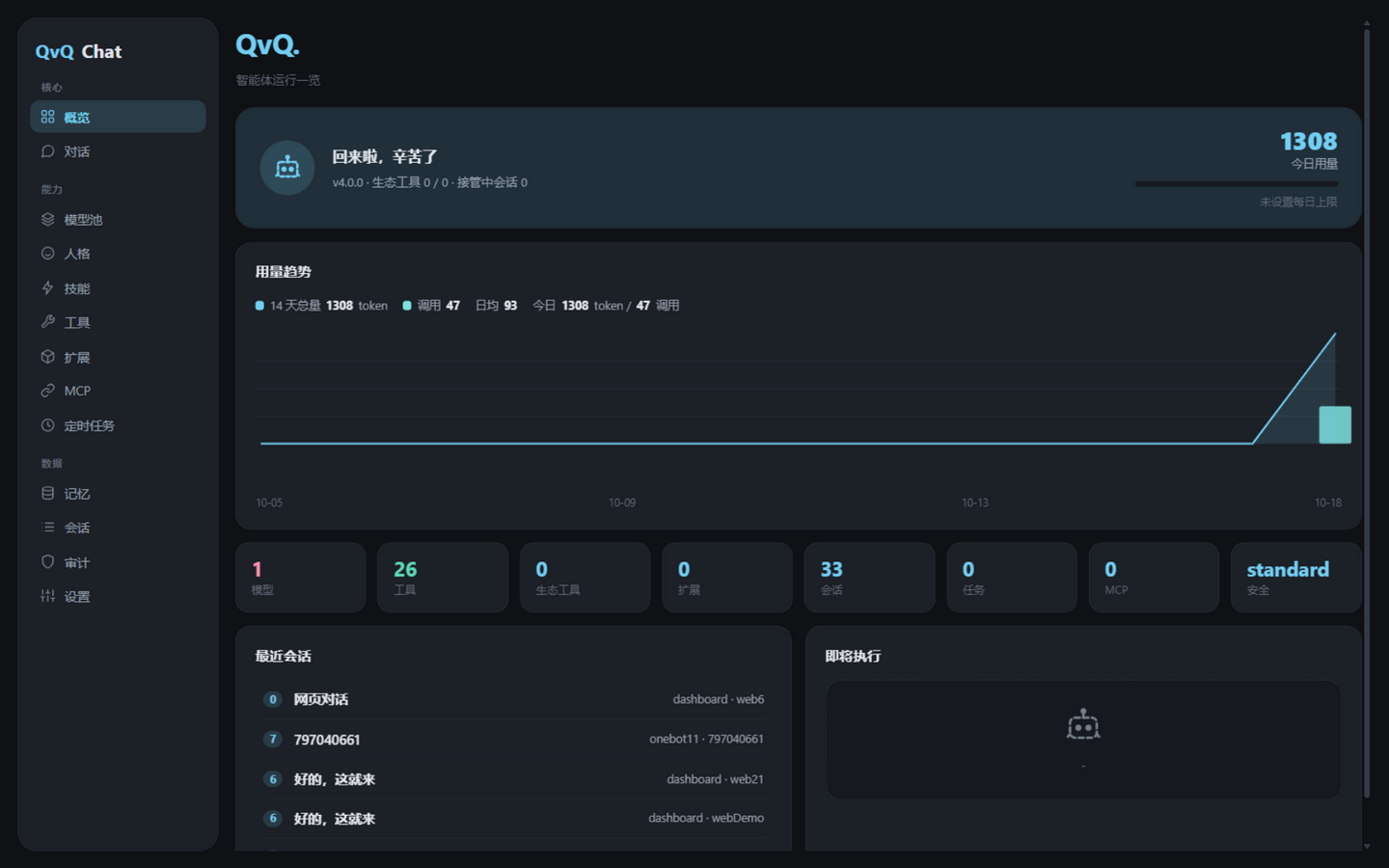
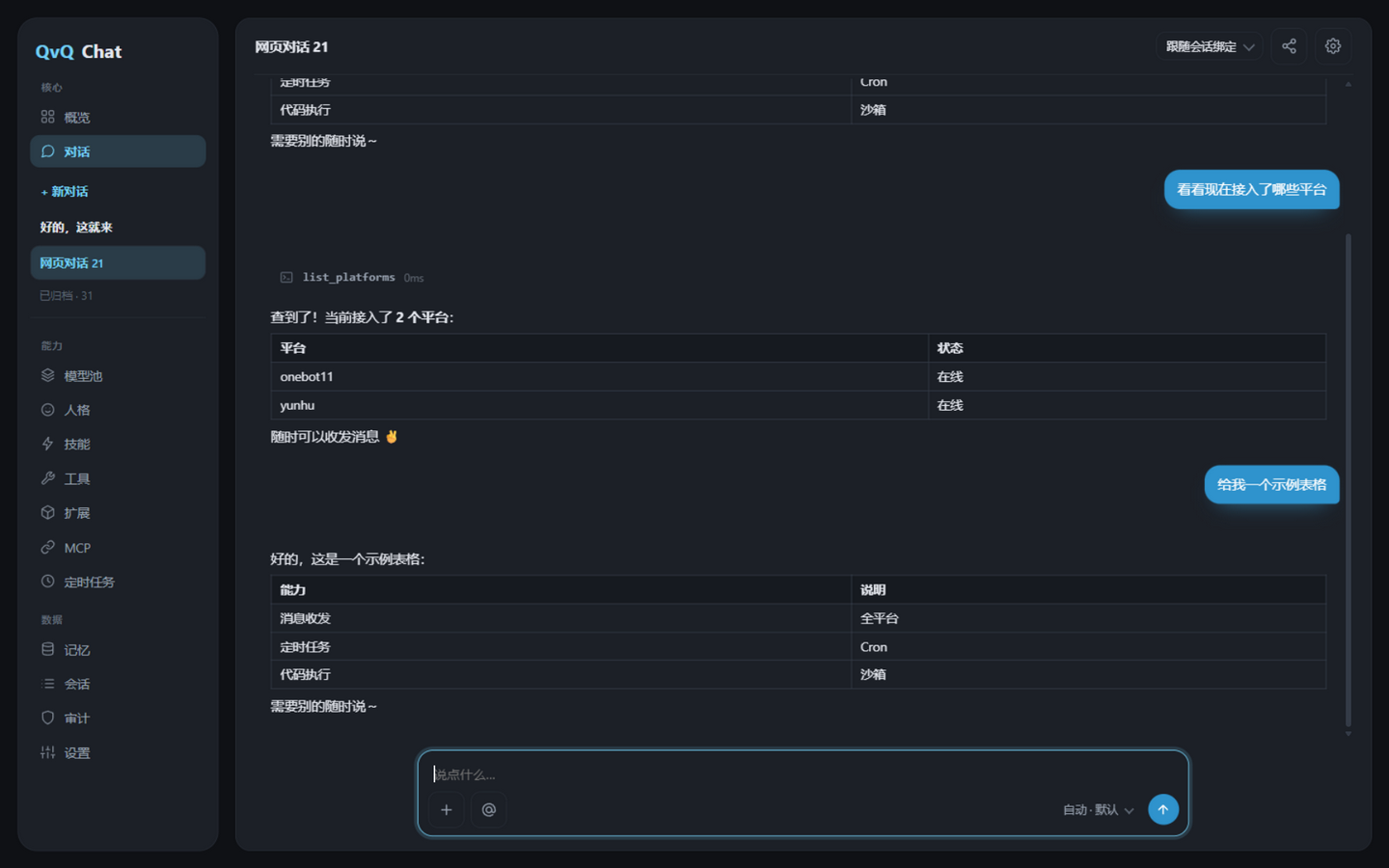
Access independently via /QvQChat/view, or embed in the Dashboard sidebar.
平台指南索引
来源:
docs/en/platform-guide/README.md(https://github.com/ErisPulse/ErisPulse/blob/main/docs/en/platform-guide/README.md)
ErisPulse PlatformFeatures Documentation
Base Protocol: OneBot12
This document is a platform-specific feature guide, including:
- Examples of chainable Send method calls supported by each adapter
- Explanations of platform-specific event/message formats
For general usage, please refer to:
Platform-Specific Features
This section is maintained by each adapter developer and describes the differences and extended features of the adapter compared to the OneBot12 standard. Please refer to the detailed documentation for each platform below:
- Maintain Notes
- Yunhu Platform Features
- Yunhu User Platform Features
- Telegram Platform Features
- OneBot11 Platform Features
- OneBot12 Platform Features
- SnowLuma Platform Features
- Email Platform Features
- Kook (Open Black) Platform Features
- Matrix Platform Features
- Official QQ Bot Platform Features
- Ideaura Coffee Shop
- Discord
- Webhook Protocol Bridge
- WeChat Official Account
Additionally, there is a
sandboxadapter, but this adapter does not require a platform-specific feature documentation.
General Interfaces
Chainable Send Calls
All adapters support the following standard calling methods:
Note:
{AdapterName}in the documentation must be replaced with the actual adapter name (such asyunhu,telegram,onebot11,
- Specify type and ID:
To(type,id).Func()# Get adapter instance my_adapter = adapter.get("{AdapterName}") # Send message await my_adapter.Send.To("user", "U1001").Text("Hello") # Example: yunhu = adapter.get("yunhu") await yunhu.Send.To("user", "U1001").Text("Hello") - Specify only ID:
To(id).Func()my_adapter = adapter.get("{AdapterName}") await my_adapter.Send.To("U1001").Text("Hello") # Example: telegram = adapter.get("telegram") await telegram.Send.To("U1001").Text("Hello") - Specify sending account:
Using(account_id)my_adapter = adapter.get("{AdapterName}") await my_adapter.Send.Using("bot1").To("U1001").Text("Hello") # Example: onebot11 = adapter.get("onebot11") await onebot11.Send.Using("bot1").To("U1001").Text("Hello") - Direct call:
Func()my_adapter = adapter.get("{AdapterName}") await my_adapter.Send.Text("Broadcast message") # Example: email = adapter.get("email") await email.Send.Text("Broadcast message")
Asynchronous Sending and Result Handling
The methods of the Send DSL return an asyncio.Task object, which means you can choose whether to wait for the result immediately:
# Get adapter instance
my_adapter = adapter.get("{AdapterName}")

# Do not wait for the result, the message is sent in the background
task = my_adapter.Send.To("user", "123").Text("Hello")

# If you need to get the sending result, you can wait later
result = await task
Sending Rule Decorators
In actual development, it is often necessary to: execute subsequent logic only after successful sending, automatically retry on failure, cancel on timeout, and monitor sending progress. The Send DSL includes a set of built-in sending rule decorators, which can be added via chained methods:
| Method | Description |
|---|---|
.Hook(callback) |
Callback executed after successful sending (can be called multiple times) |
.Retry(times=1) |
Automatic retry on failure N times (total of N+1 attempts, including the first) |
.Timeout(seconds) |
Single sending timeout, cancellation on timeout (can be stacked with Retry) |
.Defer(seconds) |
Delay sending (in-process timing, not persisted) |
.OnProgress(callback) |
Progress callback at each stage, passing SendContext |
.OnError(callback) |
Error callback on final failure (triggers only once) |
yunhu = adapter.get("yunhu")

# Deduct points only after successful sending
await (yunhu.Send.To("user", "123")
       .Hook(lambda r: deduct_points("123"))
       .Text("Consumption successful"))

# Retry on failure + timeout cancellation + progress monitoring
def on_progress(ctx):
    print(f"Stage: {ctx.stage}, Attempt: {ctx.attempt + 1}/{ctx.max_attempts}")

task = (yunhu.Send.To("user", "123")
        .Retry(3)              # Retry up to 3 times
        .Timeout(10)           # Timeout of 10 seconds per attempt
        .OnProgress(on_progress)
        .OnError(lambda ctx: notify_admin(ctx.error))
        .Text("Important notice"))
Rule methods return self, so they must be called before the sending methods (such as Text/Image). SendContext contains fields such as stage (pending/sending/retrying/success/failed/timeout), attempt, elapsed, error, result, which are useful for monitoring.
Batch Build Mode (Build)
Multiple sending methods can be built within a single chain, and executed together at the end. This is suitable for scenarios where multiple messages are sent at once:
yunhu = adapter.get("yunhu")

# Build multiple messages and send them together
results = await (yunhu.Send.To("user", "123")
                .Build()                     # Enter build mode
                .Text("Notification 1")
                .Image("pic.jpg")
                .Text("Notification 2")
                .send_all())                 # Execute all at once
# results = [Text result, Image result, Text result]
.send_all() executes by default in parallel (concurrent sending, high efficiency). If the order of message arrival needs to be guaranteed, call .Sequential() to execute serially:
# Sequential execution (guarantee order) + retry on failure
await (yunhu.Send.To("group", "456")
       .Build()
       .Sequential()                # Send in order
       .Retry(2)                     # Retry failed entries individually
       .Text("First message").Text("Second message")
       .send_all())
Batch execution adopts a fail-continue strategy: failure of one message does not interrupt others, and failed entries are automatically retried. Batch also supports Hook for the entire batch (triggered after all succeed), OnError (triggered when there are failures), and OnProgress (progress callback).
For more detailed information on rules and batch building, please refer to SendDSL Detailed Explanation.
Event Listening
There are three ways to listen to events:
Platform-native event listening:
from ErisPulse.Core import adapter, logger

@adapter.on("event_type", raw=True, platform="{AdapterName}")
async def handler(data):
    logger.info(f"Received raw {AdapterName} event: {data}")
OneBot12 standard event listening:
from ErisPulse.Core import adapter, logger

# Listen to OneBot12 standard events
@adapter.on("event_type")
async def handler(data):
    logger.info(f"Received standard event: {data}")

# Listen to specific platform's standard events
@adapter.on("event_type", platform="{AdapterName}")
async def handler(data):
    logger.info(f"Received {AdapterName} standard event: {data}")
Event module listening: Events in the
Eventmodule are based on theadapter.on()function, so the event format provided byEventis a OneBot12 standard event.from ErisPulse.Core.Event import message, notice, request, command message.on_message()(message_handler) notice.on_notice()(notice_handler) request.on_request()(request_handler) command("hello", help="Send a greeting message", usage="hello")(command_handler) async def message_handler(event): logger.info(f"Received message: {event}") async def notice_handler(event): logger.info(f"Received notice: {event}") async def request_handler(event): logger.info(f"Received request: {event}") async def command_handler(event): logger.info(f"Received command: {event}")
Among these, it is most recommended to use the Event module for event handling, because the Event module provides rich event types and event handling methods.
Standard Formats
For easy reference, the following are basic event formats. For detailed information, please refer to the links above.
Note: The following formats are basic OneBot12 standard formats. Each adapter may have extended fields based on this. Please refer to the specific feature descriptions of each adapter for details.
Standard Event Format
All adapters must implement the event conversion format:
{
  "id": "event_123",
  "time": 1752241220,
  "type": "message",
  "detail_type": "group",
  "platform": "example_platform",
  "self": {"platform": "example_platform", "user_id": "bot_123"},
  "message_id": "msg_abc",
  "message": [
    {"type": "text", "data": {"text": "Hello"}}
  ],
  "alt_message": "Hello",
  "user_id": "user_456",
  "user_nickname": "ExampleUser",
  "group_id": "group_789"
}
Standard Response Format
Message Sending Success
{
  "status": "ok",
  "retcode": 0,
  "data": {
    "message_id": "1234",
    "time": 1632847927.599013
  },
  "message_id": "1234",
  "message": "",
  "echo": "1234",
  "{platform}_raw": {...}
}
Message Sending Failure
{
  "status": "failed",
  "retcode": 10003,
  "data": null,
  "message_id": "",
  "message": "Missing required parameters",
  "echo": "1234",
  "{platform}_raw": {...}
}
References
ErisPulse Project:
Related Official Documentation:
- OneBot V11 Protocol Documentation
- Telegram Bot API Official Documentation
- Yunhu Official Documentation
Contributing
We welcome more developers to contribute and maintain adapter documentation! Please follow these steps to submit your contribution:
- Fork the ErisPulse repository.
- Create a Markdown file in the
docs/platform-features/directory, naming it in the format<Platform Name>.md. - Add a link to your contributed adapter and related official documentation in this
README.mdfile. - Submit a Pull Request.
Thank you for your support!